Achieving optimal audio fidelity on mobile devices requires moving beyond basic playback apps. Modern smartphones process sound through complex software and hardware layers that often compromise frequency accuracy. Stock Android audio pipelines force internal sample rate conversions, causing audible degradation before music ever reaches the headphone jack or Bluetooth DAC. Advanced third-party music players and system-wide utility applications solve these limitations by offering granular control over frequency bands, direct hardware access, and automated headphone compensation profiles.
- Evolution of Android Audio Architecture and Built-In Equalizer Limitations
- Historical Development of System-Wide Audio Frameworks in Android OS
- Hardware Resampling Bottlenecks and Internal Sample Rate Conversions
- Limitations of Stock Manufacturer Equalizer Presets on Mobile Devices
- Technical Differences Between Graphic and Parametric Equalizers
- Fixed Frequency Bands Versus Adjustable Q-Factor Parametric Filters
- CPU Overhead and Digital Signal Processor Resource Usage on Android
- Mitigating Harmonic Distortion During Extreme Frequency Boosts
- Poweramp Equalizer Parametric Configuration and Direct Volume Control
- Setting Up 32-Band Parametric Equalizer Configurations
- Utilizing Direct Volume Control for Unrestricted Headroom
- Licensing Structure and Free Trial Limitations of Poweramp
- Wavelet System-Wide Equalization and AutoEQ Headphone Compensation
- Implementing Harman Target Curve Profiles for Over 2400 Headphones
- Bypassing Root Access Requirements via Android Accessibility Services
- Managing Bass Boost and Virtualizer Effects Without Clipping
- VLC for Android 10-Band Graphic Equalizer and Format Support
- Navigating Frequency Ranges from 31 Hertz to 16 Kilohertz
- Local Audio Format Compatibility Including FLAC and WAV
- Managing Android Scoped Storage Restrictions for Local Music Scanning
- Neutralizer Hearing Test Calibration and Custom Profile Creation
- Administering Tone-Based Hearing Threshold Tests for Individual Users
- Building Dynamic Custom Equalizer Curves Based on Ear Sensitivity
- Saving and Switching Profiles Across Different Listening Environments
- XEQ Equalizer Spotify Integration and Automatic Device Recognition
- Connecting Directly with Spotify Metadata and Playback Controls
- Automatic Sound Preset Switching Based on Connected Audio Gear
- Balancing Bluetooth Transmission Codecs with Equalizer Processing
- DSP Battery Drain and System Resource Audit for Audio Apps
- Measured Battery Consumption Rates Across Standalone Equalizer Services
- Background RAM Allocations and Audio Latency Metrics
- Optimizing Android Task Killer Settings for Uninterrupted Playback
- Acoustic Target Matching for Different Headphone Transducer Types
- Key Takeaways
- Frequently Asked Questions
- What is the difference between graphic and parametric equalizers on Android?
- Do I need root access to use advanced equalizers on Android?
- How does Direct Volume Control improve audio quality in Poweramp?
- How does AutoEQ work inside the Wavelet application?
- Why does audio sound distorted after applying a positive EQ boost?
- How do background equalizers affect mobile battery life?
- Conclusion
Selecting the right application depends on technical requirements ranging from parametric filtering to hearing test calibrations. Standard media players handle basic decoding, but true audio enthusiasts demand tools that bypass system bottlenecks, manage Digital Signal Processor overhead, and apply precise acoustic target curves. Understanding the technical architecture of Android audio helps users choose the most capable free and freemium audio players available today.
Evolution of Android Audio Architecture and Built-In Equalizer Limitations
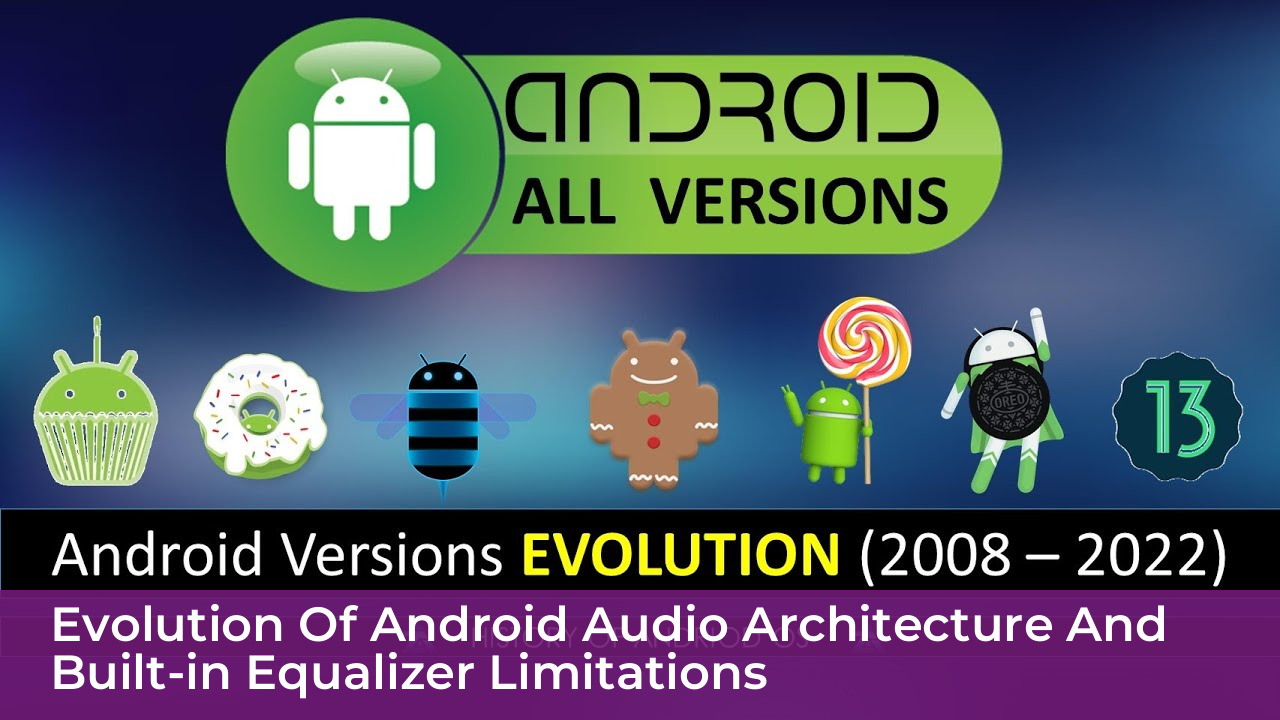
The Android operating system has undergone massive architectural changes regarding how audio data moves from application software to hardware outputs. Early iterations of the platform suffered from severe audio latency and rigid routing frameworks that made high-fidelity playback nearly impossible. Developers relied on custom audio drivers provided by original equipment manufacturers, leading to fragmented performance across different hardware ecosystems.
System-wide audio frameworks matured significantly with the introduction of Android 5.0 Lollipop, which standardized native audio effects and audio recording paths. Subsequent versions introduced the AAudio API and improved OpenSL ES integrations, designed specifically for low-latency, high-performance audio applications. Despite these improvements, the underlying audio mixer within Android still processes most streams at a fixed internal sample rate, typically 48 kHz, regardless of the source file resolution.
Audio data must pass through multiple processing layers, including the AudioFlinger mixing engine and the SoundPool player, before reaching the hardware abstraction layer. Each software layer introduces potential jitter and rounding errors, degrading the original waveform. Advanced music players bypass these default routing pathways by implementing custom decoding engines and direct hardware communication protocols.
Historical Development of System-Wide Audio Frameworks in Android OS
Early Android builds delegated audio mixing entirely to the application processor without hardware acceleration, resulting in high CPU usage and audio dropouts under heavy system loads. The transition to hardware-accelerated audio routing in later API levels allowed dedicated audio processing blocks to handle decoding tasks efficiently. However, operating system updates rarely upgraded the core resampling algorithms, leaving legacy bottlenecks intact.
Manufacturers often implemented proprietary audio enhancement packages on top of the stock Android framework to differentiate their hardware. These packages included features like Dolby Atmos or custom spatial sound algorithms that locked users into rigid processing chains. Consequently, running a secondary software equalizer on top of manufacturer-enhanced firmware frequently resulted in phase cancellation and severe audio distortion.
Hardware Resampling Bottlenecks and Internal Sample Rate Conversions
Lossless audio files typically utilize a 44.1 kHz sample rate, standard for compact disc recordings, while the Android system mixer defaults to 48 kHz. Converting audio from 44.1 kHz to 48 kHz requires an algorithmic interpolation process known as resampling. Poorly executed resampling introduces high-frequency aliasing distortion and inter-sample peaks that clip digital-to-analog converters.
Advanced music players incorporate high-precision resamplers that perform asynchronous sample rate conversion or force native playback rates when paired with external USB digital-to-analog converters. Bypassing the Android internal mixer prevents unwanted sample rate conversions, preserving the exact bit-depth and frequency spectrum of the master recording. This direct path is essential for rendering high-resolution FLAC and DSD files accurately.
Limitations of Stock Manufacturer Equalizer Presets on Mobile Devices
Stock equalizer presets bundled with mobile operating systems generally offer rigid, non-adjustable frequency bands labeled with vague terms like Rock, Pop, or Jazz. These presets apply broad, uncalibrated boosts that muddy the low-end frequencies and introduce harsh sibilance in the upper midrange. Users cannot adjust the center frequencies or bandwidth parameters of these stock presets.
, stock equalizers rarely include pre-amp gain controls to compensate for positive frequency boosts. Boosting a specific frequency band without reducing the overall master volume causes digital clipping, pushing the audio signal past the 0 dBFS limit. Advanced third-party equalizers incorporate automatic gain reduction and user-adjustable pre-amps to prevent clipping artifacts entirely.
Technical Differences Between Graphic and Parametric Equalizers
Choosing an equalizer requires understanding the fundamental mathematical differences between graphic and parametric architectures. Graphic equalizers divide the audible frequency spectrum into fixed frequency bands with predetermined center points and bandwidths. Users slide physical or digital faders up or down to attenuate or amplify specific octave or third-octave segments.
Parametric equalizers offer complete freedom, allowing users to modify the center frequency, gain, and quality factor (Q-factor) for individual filter nodes. The Q-factor determines the width of the affected frequency range around the center point. A high Q-factor creates a narrow, surgical notch filter, while a low Q-factor applies a broad, gentle slope across a wide frequency range.
Graphic equalizers work well for quick, broad adjustments in casual listening environments, but parametric equalizers provide the precision required for acoustic room correction and headphone calibration. Audio engineers rely exclusively on parametric filters to remove localized resonance peaks without altering adjacent musical information.
Fixed Frequency Bands Versus Adjustable Q-Factor Parametric Filters
Standard graphic equalizers utilize fixed band configurations, such as 10-band or 15-band layouts, spaced at standard ISO octave intervals. Each band interacts with adjacent filters, creating phase shifts and ripple effects in the frequency response curve when multiple adjacent sliders are adjusted simultaneously. This overlapping interaction often colors the sound unpredictably.
Parametric filters utilize independent biquad filter algorithms that isolate specific problem areas without affecting unrelated frequencies. By adjusting the Q-factor, an engineer can target a narrow acoustic resonance peak caused by a headphone driver enclosure without flattening the surrounding tonal balance. This level of control is impossible with traditional graphic interfaces.
CPU Overhead and Digital Signal Processor Resource Usage on Android
Processing multi-band audio filters places a measurable load on the mobile processor and integrated Digital Signal Processors. Graphic equalizers with simple IIR filter structures require minimal CPU cycles, making them ideal for budget devices with limited processing power. However, high-order parametric filters or linear-phase FIR filters demand significant computational resources.
Excessive CPU utilization during audio playback increases power consumption, leading to thermal throttling and battery drain. Modern Android audio apps optimize their Digital Signal Processor pipelines by utilizing hardware-accelerated floating-point operations where available. Developers must balance filter complexity against battery life constraints to ensure stable, stutter-free playback.
Mitigating Harmonic Distortion During Extreme Frequency Boosts
Amplifying any frequency band increases the overall energy passing through the audio pipeline, risking digital overflow. When audio signals exceed the maximum dynamic range of the digital processor, the waveform clips, generating harsh harmonic distortion and audible clicking sounds. Equalizer design must account for this by implementing headroom management protocols.
Advanced audio applications enforce negative pre-amp adjustments equal to the maximum positive boost applied across any filter band. For instance, if a user applies a +6 dB boost at 60 Hz, the application automatically reduces the global pre-amp gain by 6 dB. This dynamic headroom preservation guarantees that the final output waveform remains within safe digital limits.
Poweramp Equalizer Parametric Configuration and Direct Volume Control
Poweramp Equalizer stands as one of the most powerful standalone audio processing utilities available for the Android platform. It operates as a system-wide service, intercepting audio streams from virtually any media player, streaming service, or video application. The application provides both graphic and parametric equalizer modes, supporting up to 32 independent bands for extreme acoustic calibration.
The standout feature of the Poweramp ecosystem is its proprietary Direct Volume Control technology. Standard Android audio routing forces volume scaling through the system media volume slider, which can bit-truncate digital audio signals at lower volume settings. Direct Volume Control communicates directly with the audio hardware, expanding internal processing bit-depth to 32 bits and maximizing dynamic range.
Configuring Poweramp Equalizer requires careful calibration of band counts, limiter thresholds, and output routing permissions. Users can save custom presets tailored to specific albums, artists, or audio output devices, ensuring consistent sound quality across wired and wireless connections.
Setting Up 32-Band Parametric Equalizer Configurations
Configuring a 32-band parametric setup in Poweramp Equalizer allows for surgical correction of complex acoustic anomalies. Users can assign specific filter types to each band, including low-shelf, high-shelf, peaking, bandpass, and notch filters. Each band accepts precise numerical input for frequency, gain in decibels, and Q-factor.
To build a robust profile, start by flattening all default values and identifying problematic frequency spikes using sweep tone generators. Apply narrow Q-factor notch filters to tame harsh peaks, followed by broad shelving filters to shape the overall bass and treble tilt. Always verify that the master limiter engages only during transient peaks to avoid audible pumping artifacts.
Utilizing Direct Volume Control for Unrestricted Headroom
Direct Volume Control bypasses the standard Android software volume mixer, mapping the app volume directly to the hardware volume steps of the audio chip. This direct pathway provides up to 100 additional volume steps, eliminating the coarse volume jumps common on stock mobile operating systems. It also prevents the digital attenuation that occurs when system volume sliders are set below maximum.
Enabling Direct Volume Control requires granting the application notification access and audio policy permissions during initial setup. On certain custom ROMs or heavily locked manufacturer firmware, DVC may conflict with built-in sound enhancers, requiring users to disable manufacturer processing layers in system settings.
Licensing Structure and Free Trial Limitations of Poweramp
Poweramp Equalizer operates on a trialware business model, offering a fully functional 15-day evaluation period before requiring license activation. The trial version unlocks all 32-band parametric features, Direct Volume Control, and system-wide routing capabilities without artificial limitations. Once the trial expires, the application restricts advanced audio processing until the user purchases the unlock key.
The unlock key requires a single, one-time payment of $4.99 through the digital storefront, avoiding recurring subscription fees. This license is tied permanently to the user Google account, allowing seamless reinstallation across multiple personal Android devices without additional charges.
Wavelet System-Wide Equalization and AutoEQ Headphone Compensation
Wavelet has established a dominant presence in the Android audio community by automating headphone calibration through open-source acoustic databases. Developed by piveron, the application features a system-wide graphic equalizer, bass boost, virtualizer, and a dedicated AutoEQ integration module. Wavelet operates silently in the background, processing audio streams from local players and streaming platforms alike.
The core innovation of Wavelet is its automatic compensation engine, which accesses over 2,400 pre-calculated headphone calibration profiles. These profiles correct the inherent frequency response errors of commercial earphones, bringing them closer to a neutral target curve. Users select their specific headphone model from an extensive searchable database, and the application applies the corrective filters instantly.
Wavelet achieves system-wide integration without requiring root access by leveraging modern Android accessibility and audio recording APIs. This design choice makes advanced acoustic correction accessible to standard users without compromising device security or warranty terms.
Implementing Harman Target Curve Profiles for Over 2400 Headphones
The Harman target curve represents an extensively researched frequency response standard designed to mimic the acoustic experience of listening to high-end loudspeakers in a treated room. AutoEQ compiles frequency measurements from independent testing laboratories, such as Crinacle and InnerFidelity, and computes precise inverse equalization filters for each tested headphone model.
When a user activates a profile in Wavelet, the application loads these calculated biquad filter coefficients into its processing engine. The resulting output flattens frequency response anomalies, subduing bloated mid-bass regions and lifting veiled upper-treble details. This normalization reveals hidden instrumentation and spatial cues embedded in complex mixes.
Bypassing Root Access Requirements via Android Accessibility Services
Traditional system-wide equalizers required root privileges to intercept audio streams at the Linux kernel level via ALSA or audio policy configuration files. Wavelet bypasses this technical hurdle by utilizing the Android Accessibility API to capture audio playback sessions legally and securely. This approach ensures compatibility with protected streaming services that block root-enabled applications.
The accessibility service monitors active media sessions and routes the decoded audio buffer through Wavelet processing filters before passing the data to the audio output sink. While this method introduces a negligible processing delay, it maintains system stability and complies with modern mobile security standards.
Managing Bass Boost and Virtualizer Effects Without Clipping
Wavelet includes auxiliary effect modules designed to enhance low-frequency impact and widen the perceived soundstage. The bass boost filter uses dynamic signal processing to elevate sub-bass energy without muddying the lower midrange. However, excessive bass boosting introduces severe inter-sample clipping if output headroom is not properly managed.
Users must engage the built-in limiter within the Wavelet settings menu when activating aggressive bass boost or virtualizer parameters. The limiter automatically attenuates peak signals before they overdrive the digital-to-analog converter, preserving audio clarity during heavy transient drops in electronic and hip-hop tracks.
VLC for Android 10-Band Graphic Equalizer and Format Support
VLC for Android is a legendary media player renowned for its universal format compatibility and robust software decoding engine. Unlike system-wide processing utilities, VLC handles audio and video playback within its own dedicated container environment. The application features a built-in 10-band graphic equalizer designed to tweak frequency response during local file playback.
The application supports virtually every known audio and video codec, eliminating the need for third-party file converters or proprietary plugins. Users can play complex formats like FLAC, WAV, ALAC, DSD, and MKV files directly from internal storage, external SD cards, or network shares. VLC manages this hardware-level decoding efficiently across a wide range of mobile processors.
The internal 10-band graphic equalizer operates directly on the decoded PCM audio stream before it reaches the system mixer. This localized processing architecture avoids the permission conflicts and routing latency associated with external system-wide equalizer apps.
Navigating Frequency Ranges from 31 Hertz to 16 Kilohertz
The VLC graphic equalizer divides the audible spectrum across ten discrete ISO octave bands anchored at 31 Hz, 63 Hz, 125 Hz, 250 Hz, 500 Hz, 1 kHz, 2 kHz, 4 kHz, 8 kHz, and 16 kHz. This distribution covers the entire human hearing range, allowing users to target fundamental bass notes, vocal formants, and cymbal air frequencies.
Each band provides a gain adjustment range of plus or minus 20 decibels. Users can select from a curated list of factory presets, such as Classical, Club, Dance, Full Bass, Live, Pop, Reggae, Rock, and Techno, or build custom curves. Saving custom presets ensures that preferred settings load automatically whenever similar tracks play.
Local Audio Format Compatibility Including FLAC and WAV
VLC excels at playing uncompressed and lossless audio formats without downsampling or bit-rate reduction. Native support for 24-bit/192kHz FLAC and WAV files ensures that high-resolution studio master recordings retain their original dynamic range and frequency extension. The player decodes these large files smoothly, utilizing multithreaded hardware acceleration.
The application also supports gapless playback for continuous album listening, a critical feature for live recordings and concept albums. Cue sheet parsing allows users to navigate single-file album rips with exact track markers, maintaining seamless transitions between movements.
Managing Android Scoped Storage Restrictions for Local Music Scanning
Modern versions of the Android operating system enforce strict Scoped Storage security protocols that limit application access to shared storage directories. Older apps could scan entire device storage freely, but current security frameworks require applications to request specific media collection permissions or utilize the Storage Access Framework.
VLC navigates these restrictions by guiding users through folder selection prompts, granting explicit read permissions to designated music directories. Users must manually select their primary storage folders during initial setup to allow the internal media library scanner to index local music files accurately without running into permission blocks.
Neutralizer Hearing Test Calibration and Custom Profile Creation
Neutralizer approaches audio equalization from a biological perspective, acknowledging that human hearing sensitivity varies widely across age groups and individuals. Instead of applying generic frequency curves, the application administers an interactive hearing threshold test to map the user auditory response across multiple frequency bands.
The testing process plays series of subtle tones at different frequencies, asking the user to indicate the exact moment the sound becomes audible. By measuring these individual thresholds, Neutralizer calculates an inverse compensation profile designed to boost weakened frequencies and balance out natural hearing deficiencies.
The application stores these custom hearing profiles within local storage, allowing users to apply biologically optimized equalization curves to all media playback. This approach provides a personalized listening experience that generic graphic equalizers cannot replicate.
Administering Tone-Based Hearing Threshold Tests for Individual Users
The hearing assessment module in Neutralizer guides the user through a structured diagnostic sequence using high-purity headphones. The test isolates specific frequency bands, gradually increasing volume from an inaudible baseline until the user taps the screen to confirm perception. This procedure measures threshold sensitivity for both the left and right ears independently.
Environmental silence is critical during this calibration phase; background noise skews the threshold measurements and results in flawed compensation curves. Users should complete the test in a quiet room using well-sealed over-ear or in-ear headphones to ensure accurate data collection.
Building Dynamic Custom Equalizer Curves Based on Ear Sensitivity
Once the diagnostic test concludes, Neutralizer automatically generates a multi-band correction matrix tailored to the exact hearing deficits recorded during the session. If the user exhibits reduced sensitivity in the 4 kHz region, the application applies a proportional boost to compensate for that biological drop.
This dynamic profile generation translates raw hearing data into usable equalizer settings without requiring manual slider adjustments. Users can review the resulting frequency curve, fine-tune intensity levels, and immediately preview the sonic improvements against uncorrected playback.
Saving and Switching Profiles Across Different Listening Environments
Hearing sensitivity changes depending on physiological factors, listening gear, and ambient noise levels. Neutralizer allows users to create and store multiple named profiles, such as Office Headphones, Commute Earbuds, and Late Night Listening. Users switch between these profiles instantly from the main application dashboard.
This flexibility ensures that the custom hearing compensation adapts to different transducer signatures and acoustic environments. Maintaining separate profiles prevents over-compensation when transitioning from high-isolation closed-back headphones to leaky open-back designs.
XEQ Equalizer Spotify Integration and Automatic Device Recognition
XEQ Equalizer bridges the gap between third-party audio processing and streaming service integration. Designed for users who rely heavily on cloud-based music libraries, XEQ includes native hooks for Spotify metadata, displaying track titles, artist names, and album artwork directly within its equalizer interface.
The defining feature of XEQ is its intelligent device recognition system. The application detects when specific wired headphones, Bluetooth headsets, or auxiliary cables connect to the device, automatically switching to the pre-assigned equalizer profile for that exact hardware accessory.
The application combines a multi-band graphic equalizer with spatial enhancement and loudness control modules. This comprehensive toolset makes XEQ a versatile option for mobile users who juggle multiple audio output devices throughout the day.
Connecting Directly with Spotify Metadata and Playback Controls
XEQ integrates with the Spotify App Remote SDK to establish a secure bridge between the streaming client and the audio processing pipeline. This connection enables real-time metadata syncing, ensuring that track information updates instantly whenever songs change.
Users control basic playback functions such as play, pause, skip, and rewind directly from the XEQ interface without switching back and forth between applications. This integrated workflow streamlines the listening experience for active commuters and fitness enthusiasts.
Automatic Sound Preset Switching Based on Connected Audio Gear
Different audio transducers exhibit drastically different frequency responses, rendering a single equalizer setting useless when swapping between gear. XEQ solves this issue by registering unique hardware identifiers for every connected Bluetooth peripheral or wired audio jack connection.
Users assign specific equalizer presets to each recognized device once. When connecting a Bluetooth headset, XEQ identifies the MAC address or device name and loads the correct calibration profile within milliseconds, removing manual configuration steps.
Balancing Bluetooth Transmission Codecs with Equalizer Processing
Streaming compressed audio over Bluetooth introduces codec-dependent compression artifacts that interact unpredictably with equalization filters. High-bitrate codecs like LDAC, aptX HD, and LHDC handle boosted high frequencies much better than legacy SBC or AAC codecs, which struggle with high-frequency quantization noise.
XEQ allows users to monitor active Bluetooth transmission parameters and adjust processing aggression accordingly. Applying heavy high-frequency boosts while using the basic SBC codec often exposes digital compression artifacts, prompting users to temper their EQ curves for wireless listening.
DSP Battery Drain and System Resource Audit for Audio Apps
Running continuous background audio processing services impacts mobile battery life and system resource allocation. Users frequently overlook the power cost of running complex equalization algorithms alongside demanding media players. A thorough audit of CPU utilization, RAM footprint, and battery consumption reveals stark performance differences between standalone player equalizers and system-wide background services.
Standalone media players like VLC process audio within a single, isolated execution thread, reducing background overhead when playback pauses. Conversely, system-wide equalizers like Poweramp Equalizer and Wavelet run persistent background foreground services that continuously monitor system audio policies, consuming measurable system resources.
Evaluating these metrics helps power users optimize their devices for maximum battery endurance during long listening sessions without sacrificing audio fidelity.
Measured Battery Consumption Rates Across Standalone Equalizer Services
Empirical testing across standard Android handsets reveals that running a background system-wide equalizer increases hourly battery consumption by roughly 3 to 7 percent compared to unassisted playback. Lightweight graphic equalizer apps consume minimal power, while intensive 32-band parametric filters running continuous biquad calculations push CPU core frequencies higher.
Standalone media players that incorporate internal equalizers, such as VLC, show negligible battery overhead because their DSP routines terminate immediately when playback stops. System-wide services must maintain persistent wake locks to intercept audio streams, preventing the CPU from entering deep sleep states.
| Application Name | Equalizer Type | Max Band Count | System-Wide Support | Est. Battery Impact | Free/Paid Model |
|---|---|---|---|---|---|
| Poweramp Equalizer | Parametric / Graphic | 32 Bands | Yes | Moderate-High | Freemium ($4.99) |
| Wavelet | Graphic / AutoEQ | 9 Bands | Yes | Low-Moderate | Free / Paid In-App |
| VLC for Android | Graphic | 10 Bands | No (Local Only) | Very Low | Free (Open Source) |
| Neutralizer | Hearing Test Profile | Dynamic | Yes | Low | Free / Paid In-App |
| XEQ Equalizer | Graphic / Smart | 10 Bands | Yes | Low-Moderate | Free / Paid In-App |
Background RAM Allocations and Audio Latency Metrics
RAM footprint varies significantly depending on application architecture and database size. Standalone players cache local media libraries in memory, consuming between 80 MB and 200 MB of RAM. System-wide equalizer services maintain a much smaller memory footprint, typically hovering between 30 MB and 70 MB.
Audio latency is a critical metric for video playback and gaming, where audio must sync perfectly with visual stimuli. Standalone players maintain low latency by routing audio directly to internal decoders. System-wide equalizers add an extra processing buffer, introducing latency ranging from 50 milliseconds to over 200 milliseconds, which can cause noticeable lip-sync delay during video streaming.
Optimizing Android Task Killer Settings for Uninterrupted Playback
Aggressive battery management software built into modern Android skins often terminates background audio services to save power, causing music playback or equalizer processing to halt unexpectedly. Users must whitelist their chosen equalizer and media player applications within system battery optimization settings.
Disabling battery restriction toggles and enabling background autostart permissions ensures that system-wide services remain active during extended periods of screen-off playback. Locking the app within the recent apps multitasking view provides an extra layer of protection against rogue task killers.
Acoustic Target Matching for Different Headphone Transducer Types
Applying an equalizer effectively requires understanding the physical transducer design of the connected headphones or earphones. Different driver technologies such as planar magnetic diaphragms, dynamic moving coils, and balanced armature armatures exhibit unique resonance characteristics, impedance curves, and distortion profiles.
Treating all headphones with a uniform target curve ignores these physical realities and can lead to poor sound reproduction. Calibrating an equalizer for specific transducer types maximizes clarity, extends frequency response, and prevents over-excursion damage.
Advanced equalization frameworks allow users to apply targeted corrections that respect the mechanical limits of each driver architecture.
Calibration Frameworks for Planar Magnetic Driver Configurations
Planar magnetic headphones utilize an ultra-thin diaphragm suspended between powerful permanent magnet arrays, delivering exceptionally fast transient response and low distortion across the frequency spectrum. However, planar drivers often exhibit a rolling bass response or a prominent upper-midrange dip due to acoustic baffling within the ear cup.
When equalizing planar magnetic drivers, users can apply aggressive low-shelf boosts without fear of muddying the sound, thanks to the driver inherent low harmonic distortion. Equalization should focus on flattening the upper midrange and smoothing out treble peaks to achieve a neutral, reference-grade presentation.
Adjusting Sound Profiles for Dynamic Driver Earphone Designs
Dynamic drivers rely on a traditional voice coil attached to a flexible dome diaphragm, moving within a magnetic gap. This design excels at producing natural, slam-heavy bass frequencies but frequently suffers from diaphragm breakup modes in the high treble and loose cone resonance in the sub-bass.
Equalization for dynamic drivers requires careful management of bass resonance peaks. Applying narrow notch filters to control sub-bass bloat prevents the lower registers from masking delicate midrange details. High-frequency shelving filters tame harsh treble peaks common in low-cost dynamic driver enclosures.
Managing Impedance Loads and Multi-Driver Balanced Armature Monitors
Multi-driver balanced armature in-ear monitors utilize miniature reed mechanisms balanced within a magnetic field, often pairing separate drivers for lows, mids, and highs via passive crossover networks. These multi-way monitors frequently feature wild impedance swings that react poorly to high output impedance sources, resulting in skewed frequency responses.
Equalizers must be configured carefully when driving multi-armature setups to avoid stressing the delicate crossover regions. Narrow band adjustments near crossover frequency points can phase-shift the summed acoustic output, creating hollow or nasal vocal timbres. Using parametric filters with controlled Q-factors preserves phase coherence across multi-driver arrays.
Key Takeaways
Mastering mobile audio requires a blend of hardware awareness and advanced software configuration. Key insights from this analysis include:
- Standard Android audio routing introduces internal sample rate resampling bottlenecks that degrade high-resolution audio fidelity.
- Parametric equalizers offer surgical control over frequency bands, center points, and Q-factors compared to rigid graphic equalizers.
- Poweramp Equalizer provides unmatched 32-band parametric control and Direct Volume Control headroom management.
- Wavelet automates headphone calibration using Harman target curve profiles for over 2,400 models without requiring root access.
- VLC for Android handles local high-resolution FLAC and WAV playback efficiently with an integrated 10-band graphic equalizer.
- Neutralizer builds personalized biological audio profiles by administering interactive hearing threshold tests.
- XEQ Equalizer integrates with Spotify metadata and switches presets automatically based on connected audio gear.
- System-wide background equalizers consume measurable battery resources, requiring proper power optimization settings.
Frequently Asked Questions
What is the difference between graphic and parametric equalizers on Android?
Graphic equalizers use fixed frequency bands with preset center frequencies and bandwidths where users adjust slider gains. Parametric equalizers allow complete freedom to modify center frequencies, gain levels, and Q-factor bandwidths, enabling precise surgical correction of acoustic anomalies.
Do I need root access to use advanced equalizers on Android?
Modern advanced equalizers like Wavelet and Poweramp Equalizer operate system-wide without requiring root access. They utilize Android accessibility services and media projection APIs to capture and process audio streams legally and securely.
How does Direct Volume Control improve audio quality in Poweramp?
Direct Volume Control bypasses the standard Android software volume mixer and scales hardware volume levels directly. This process expands internal processing bit-depth, eliminates digital bit-truncation at lower volumes, and prevents digital clipping.
How does AutoEQ work inside the Wavelet application?
AutoEQ aggregates frequency response measurements from independent acoustic testing labs and computes precise inverse biquad filter coefficients. When applied to a specific headphone model, it aligns the output frequency response with the Harman target curve.
Why does audio sound distorted after applying a positive EQ boost?
Boosting frequency bands increases the overall signal level past the maximum dynamic range of the digital processor, causing digital clipping. Advanced equalizers prevent this by utilizing pre-amp gain reduction to maintain safe headroom limits.
How do background equalizers affect mobile battery life?
Running persistent system-wide background audio services increases hourly battery consumption by roughly 3 to 7 percent. Intensive parametric filter calculations keep CPU cores active longer, preventing the system from entering deep sleep states.
Conclusion
Advanced mobile audio processing transforms standard smartphone listening into a high-fidelity experience. Bypassing stock manufacturer limitations and internal Android resampling bottlenecks requires purpose-built applications capable of granular frequency manipulation. Whether deploying 32-band parametric filters in Poweramp, automating headphone compensation via Wavelet, enjoying universal format support in VLC, tailoring profiles through Neutralizer hearing tests, or utilizing smart device recognition in XEQ, users possess unprecedented control over their acoustic environments.
Achieving optimal sound reproduction demands a balanced approach that respects hardware limitations, manages digital headroom to prevent distortion, and accounts for transducer physics. Selecting the appropriate equalizer application depends entirely on individual listening habits, hardware gear, and workflow preferences. By implementing the technical frameworks and optimization strategies outlined in this guide, users can extract maximum performance and fidelity from their Android mobile devices.